Today I learned about the CSS property text-underline-position. As Stuart mentions, the
under value forces the underline to sit below all the descenders, giving you a consistent baseline.
a {
	text-underline-position: under;
}Today I learned about the CSS property text-underline-position. As Stuart mentions, the
under value forces the underline to sit below all the descenders, giving you a consistent baseline.
a {
text-underline-position: under;
}I keep forgetting how each of the following CSS values rolls back a declaration to a different point in the cascade. It was about time I jotted it down for my future self before it slips my mind again for the 1000th time.
initialunsetrevertrevert-layerThe problem is that Live Text, “Select text in images to copy or take action,” is enabled by default on iOS devices (Settings → General → Language & Region), which can interfere with the contextual menu in Safari. Pressing down on the above link may select the text inside the image instead of selecting the link URL.
Just spent some time playing with OKpalette, a color extraction tool by David Aerne, and I’m in awe.
The 3D spinning text pulled me in immediately. I assumed it was done using JavaScript because it reminded me of the Space Type Generator. Finding out it’s done using CSS genuinely blew my mind. David was kind enough to share a CodePen demo.
I loved the animations and the subtle use of audio while interacting with the UI. Then I watched David’s walkthrough / demo and realized the functionality is just as beautiful as the visuals, if not more.
I just saw Jason Pamental’s excellent talk on ‘The Life of <p>’. In this talk, Jason traces the evolution of paragraph design in print and shows how those typographic ideas can be applied using CSS.
There’s one moment during the Q&A where Jason mentions:
[…] you see the page gets small, but they don’t change the scale of the headers. So you end up with like an
<h1>with one word per line. It’s a really awkward break. So I think proportion with varying screen size is probably the most overlooked thing right now that I’d want to see people think about more.
I wasn’t a web developer 10 years ago when Jason gave this talk, but with over five years of experience now, it’s striking that I only became aware of proportional type scaling as an idea in the last couple of years. Nowadays, I use utopia.fyi to create fluid type (and space) scales across viewport ranges, which helps address the problem Jason mentioned.
Today I learned that on macOS, with the default scrollbar setting enabled, classic scrollbars are shown automatically when a mouse is connected. I used to believe that, mouse or not, users needed to explicitly change the scrollbar appearance to get the classic scrollbars.
This is relevant for everyone who builds websites because when classic scrollbars are shown, the value of 100vw includes the scrollbar width. This can cause an unexpected horizontal overflow if the layout relies on 100vw for full-width elements. Additionally, they affect media queries, which assume scrollbars don’t exist when evaluating viewport width.
Having said that, these aren’t new issues. Classic scrollbars are shown by default on Windows, where the same behaviours apply.
Further reading:
To be honest, I had a tough time understanding this article completely. But that is a me problem because I think I don’t have the right mental model for view transitions yet. Nevertheless, I’m sure this article will be super helpful someday in the future.
Today I learned, :root (0-1-0) has a higher specificity than html (0-0-1).
In hindsight, it’s obvious. :root is a CSS pseudo-class selector and, like most pseudo-class selectors, it has the same specificity as a class selector or an attribute selector.
Stupid #CSS question because I’m losing my mind here: why isn’t calc(.5*a) working? What am I missing? It doesn’t seem to be working in any browser.
Ana is trying to use calc(.5 * a) as a part of the relative color syntax, presumably to create semi transparent outlines. But it is not working because calc(.5 * a) is an invalid property value. As Valtteri Laitinen replied, it should actually be alpha in there instead of a.
.class {
	outline-color: rgb(from currentcolor r g b / calc(0.5 * a)); /* ❌ invalid */
	outline-color: rgb(
		from currentcolor r g b / calc(0.5 * alpha)
	); /* ✅ valid */
}I was reading Manuel Matuzovic’s article on meta theme color and came across this snippet:
<style>
	:root {
		--theme: blue;
	}
</style>
<meta name="theme-color" content="var(--theme)" />
I wish it was possible to access custom properties outside the <style> tag in the <head>. It would keep things DRY.
Today I learned, grid-auto-columns and grid-auto-rows size implicit tracks as well as any explicit tracks that are not explicitly sized by by grid-template-rows or grid-template-columns.
Until now, I was under the impression that grid-auto-rows and grid-auto-columns size only implicit grid tracks.
The grid-row grid-placement property is shorthand for grid-row-start and grid-row-end.
.grid-item {
	grid-row: 1/-1;
	/* is equivalent to */
	grid-row-start: 1;
	grid-row-end: -1;
}
In the above declaration, we use integers to position and size the grid item by line numbers.
As per the spec:
Numeric indexes in the grid-placement properties count from the edges of the explicit grid. Positive indexes count from the start side (starting from 1 for the start-most explicit line), while negative indexes count from the end side (starting from -1 for the end-most explicit line).
The important bit is the explicit grid. This begs the question …
As per the spec:
The three properties
grid-template-rows,grid-template-columns, andgrid-template-areastogether define the explicit grid of a grid container by specifying its explicit grid tracks.
Simply put, the explicit grid consists of manually defined rows and columns.
The size of the explicit grid is determined by the larger of the number of rows/columns defined by
grid-template-areasand the number of rows/columns sized bygrid-template-rows/grid-template-columns. Any rows/columns defined bygrid-template-areasbut not sized bygrid-template-rows/grid-template-columnstake their size from thegrid-auto-rows/grid-auto-columnsproperties. If these properties don’t define any explicit tracks the explicit grid still contains one grid line in each axis.
That last bit is what leads to line -1 being the same line as 1 because the explicit grid still contains one grid line in each axis.
As Manuel Matuzovic puts it:
If there are more grid items than cells in the grid or when a grid item is placed outside of the explicit grid, the grid container automatically generates grid tracks by adding grid lines to the grid. The explicit grid together with these additional implicit tracks and lines forms the so called implicit grid.
Paraphrasing Jen Simmons:
grid-row: 1/-1 will work as expectedI got the opportunity to proofread Ahmad Shadeed’s latest article on CSS Grid Areas before its release. It inspired me to refactor the code on my site to use grid-template-areas.
Wow! Who knew you could use modern CSS to test HTML? Well, Heydon certainly did!
This article by Michelle Barker for Piccalilli is a great read. I learned about a bunch of new CSS properties that I didn’t know existed.
In Level 3 of the Display specification, the value of
displayis defined as two keywords. These keywords define the outer value of display, which will beinlineorblockand therefore define how the element behaves in the layout alongside other elements. They also define the inner value of the element — or how the direct children of that element behave.This means that when you say
display: grid, what you are really saying isdisplay: block grid. You are asking for a block level grid container. An element that will have all of the block attributes — you can give it height and width, margin and padding, and it will stretch to fill the container. The children of that container, however, have been given the inner value ofgridso they become grid items. How those grid items behave is defined in the CSS Grid Specification: thedisplayspec gives us a way to tell the browser that this is the layout method we want to use.
As simply put by Rachel:
When you define layout on a box in CSS, you are defining what happens to this box in terms of how it behaves in relation to all of the other boxes in the layout. You are also defining how the children of that box behave.
In web development, small design decisions can have a significant impact on accessibility and user experience. One such decision is how we handle borders on interactive elements.
When styling interactive elements like buttons, it’s common practice to remove default borders using border: none. However, this approach can lead to accessibility issues, especially in high contrast mode. As demonstrated in the image below, removing the border entirely can cause buttons to appear as floating text on the page, making it difficult for users with low vision to distinguish interactive elements.
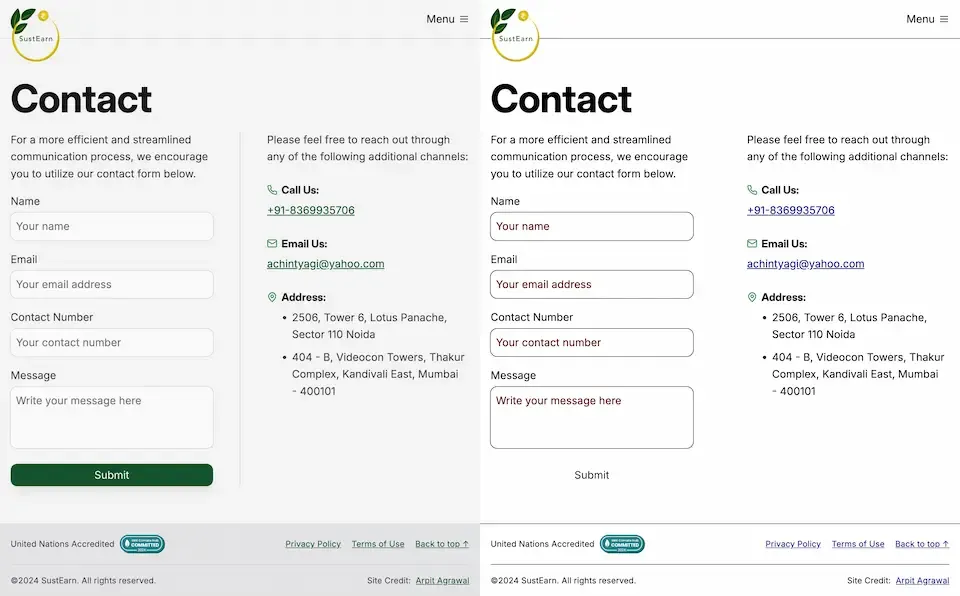
Dave Rupert explains the importance of the default border and why it exists:
In the case of interactive form controls (inputs, textareas, buttons, etc.), those pesky borders were put there because they have an accessibility benefit when using High Contrast Mode, a feature used by 30.6% of low-vision users.
To address this issue, Dave recommends making the border or outline transparent instead of removing it entirely. This can be achieved with the following CSS:
button {
	border-color: transparent;
}
As demonstrated in the image below, this approach is effective for several reasons. First, sighted users will not notice the difference. Second, as Kilian Valkhof explains, in forced color mode, the border color or outline color “will be overwritten with the current text color, making it nicely visible again without needing any special adaption or re-styling for forced color mode.”
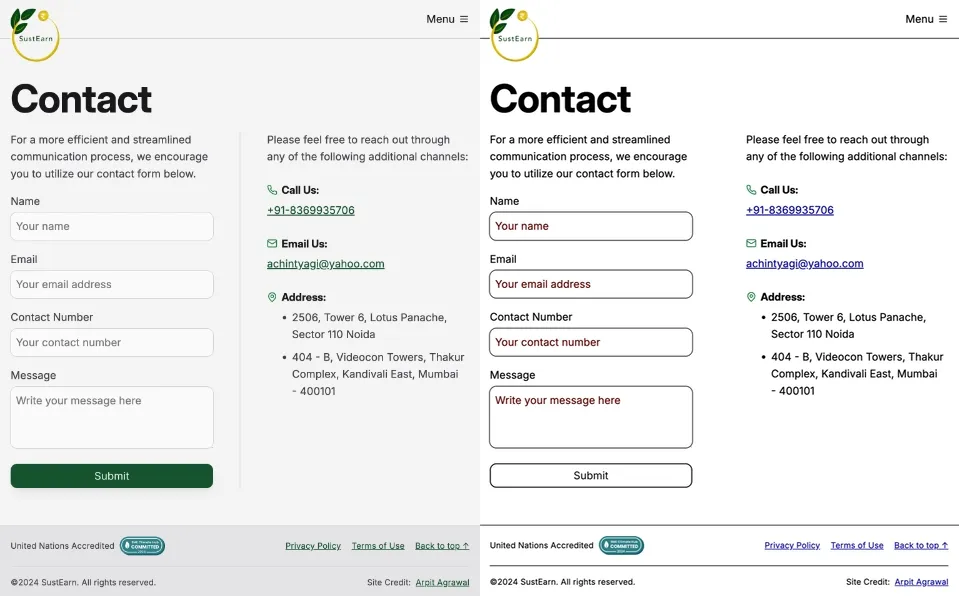
Using transparent borders offers additional benefits for user experience. Consider hover effects, for example.
button {
	border: none;
}

button:hover {
	border: 2px solid navy;
}
In such situations, applying a visible border on hover can inadvertently change the element’s dimensions. This change in size can result in a jarring visual effect.
By setting a transparent border in the default state, we ensure smooth transitions and consistent element sizes across different states.
<div>
	<button class="no-border-btn">Button with no border</button>
	<button class="transparent-border-btn">Button with transparent border</button>
</div>
.no-border-btn {
border: none;
&:hover {
border: 2px solid navy;
}
}
.transparent-border-btn {
border: 2px solid transparent;
&:hover {
border-color: navy;
}
}Transparent borders are also valuable in the context of themeable design systems. Brad Frost elaborates:
When supporting multiple theme, it can be common for some themes to use borders while others don’t. This flexibility is great! Each brand is able to express themselves how they see fit. But if implemented using different border widths, shifts in the box model happen.
By using border-color: transparent for themes without visible borders, designers and developers can maintain consistent element sizes across different variants and themes. This approach provides the flexibility to adapt the visual design while preserving the underlying structure and layout of the components.
Implementing transparent borders in your CSS addresses crucial accessibility concerns, enhances user experience across different display modes, and provides the flexibility needed for robust, adaptable design systems.
Thanks to Kevin Powell, today I learned that the text-underline-offset property is named so because it only applies to underlines and not other text-decoration-line values like overline and line-through.
<a href="https://example.com">Example</a>a {
text-decoration-line: underline overline; /* We can set multiple line-decoration properties at once */
text-underline-offset: 16px; /* Only impacts underline */
}